How do you record a GIF with ScreenToGif?
Recording a GIF with ScreenToGif takes six actions, and the labels below match the English interface of version 2.43.2.
- Install ScreenToGif. Copy the winget command, press Win+R, paste it and press Enter, or run the official setup MSI.
- Open the Recorder. Start ScreenToGif from the Start menu and select Recorder in the start-up window.
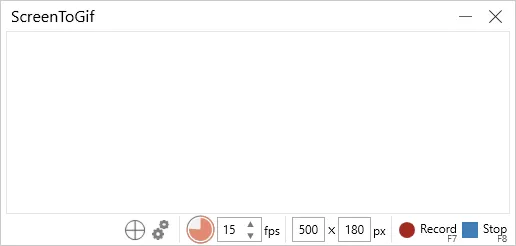
- Frame the area. Drag the recorder frame over the part of the screen to capture and leave the rate at 15 fps or change it.
- Start recording. Press F7 or select Record; press F7 again to pause.
- Stop recording. Press F8 or select Stop, and the captured frames open in the Editor.
- Save the GIF. Delete unwanted frames, press Ctrl + S, choose GIF under Animated image, pick an output folder and select Save.
What are ScreenToGif's default settings?
ScreenToGif's defaults below were read from the version 2.43.2 source files, so they match a fresh install before you change anything in Options.
| Setting | Default | Source file |
|---|---|---|
| Start or pause recording | F7 | Settings.xaml |
| Stop recording | F8 | Settings.xaml |
| Discard recording | F9 | Settings.xaml |
| Capture rate | 15 frames per second | Settings.xaml |
| Recorder frame on first run | 518 × 269 pixels | Settings.xaml |
| Mouse cursor | Captured | Settings.xaml |
| Countdown before recording | Off (3 seconds when on) | Settings.xaml |
| Save as in the Editor | Ctrl + S | Commands.xaml |
| Default GIF preset | Built-in encoder, Neural quantizer, up to 256 colours | EmbeddedGifPreset.cs |
| Looping | Repeat forever | AnimatedImagePreset.cs |
| Default file name | Animation | StringResources.en.xaml |
| Update check | On; asks before installing | Settings.xaml |
| Cache clean-up | Projects older than 5 days | Settings.xaml |
Sources: Settings.xaml, Commands.xaml, EmbeddedGifPreset.cs, AnimatedImagePreset.cs and the English strings at tag 2.43.2. No global hotkey opens the Recorder or Editor until you assign one under Options → Shortcuts.
How do you make ScreenToGif GIFs smaller or sharper?
ScreenToGif's GIF size and sharpness depend on the preset you pick in Save as. The default preset uses the built-in encoder with the Neural quantizer and a sampling factor of 10. High quality samples every pixel for recordings with gradients, High quality • Graphics switches to the Octree quantizer for screens with few colours, and a Transparent background preset keeps transparency. KGy SOFT and System are built in too, while FFmpeg and Gifski are external encoders you download from the app's plugins page, which fetches the latest FFmpeg since version 2.43. Cutting the rate below 15 fps, deleting duplicate frames and shrinking the capture area save more than any encoder setting.
Where does ScreenToGif keep recordings and settings?
ScreenToGif keeps unsaved recordings as projects in %temp%\ScreenToGif\Recording and removes projects older than 5 days automatically. Settings live in %APPDATA%\ScreenToGif\Settings.xaml, unless a Settings.xaml file sits next to the program, which is how the portable build keeps everything in one folder. Saved GIFs go only to the folder you choose in Save as.
Can ScreenToGif save video as well as GIF?
Yes. Besides GIF, Save as exports GIF, APNG, WebP, AVIF, BPG, MP4, WebM, MKV, MOV, AVI, PNG, JPEG, BMP, PSD, ZIP and the STG project format. Video import and export rely on FFmpeg, and version 2.43.2 fixed both for FFmpeg 7 and newer. The Webcam and Board recorders in the start-up window feed the same Editor, so every source ends in the same Save as dialog.
Frequently asked questions
Why does ScreenToGif ask me to select an output folder?
Save as checks the output folder before it encodes anything and stops with “You need to select an output folder.” when none is set. The default GIF preset has no folder set, so choose one with the folder button next to the file name, then select Save again.
How do I pause a ScreenToGif recording?
Press F7 while recording. The same key starts, pauses and resumes the Recorder, F8 stops it and opens the Editor, and F9 throws the recording away.
Does the ScreenToGif GIF loop forever?
Yes, by default. The animated-image presets are set to repeat forever, so the saved GIF loops in browsers, chat apps and image viewers until you change the repeat option in Save as.
Where do unsaved ScreenToGif recordings go?
Into projects under %temp%\ScreenToGif\Recording. ScreenToGif deletes projects older than 5 days automatically, so save the GIF from the Editor before then.